

Managing client files becomes harder when the first step is remembering which account and folder contains the work. A team working across many clients needs one way to find current files, another way to review activity that needs attention, and clear routes back to the account that owns each item.
Sydnee's team workspace separates those jobs without removing the account boundaries around the files. All Files helps you find and work with current files across the client accounts you can access. File Activity is the inbox for file notices. Separate Deliverables and Public links views help you review final handoffs and externally shared files.
Clients do not see these cross-account workspaces. They use Files and Deliverables inside their own branded portal account.
Start with the question you need to answer
Choose the team view that matches the job:
| Question | Start here |
|---|---|
| Where is the current file? | Files → All Files |
| Which new upload, comment, or version needs attention? | Files → Inbox |
| Which final packages have we published? | Files → All Files → Deliverables |
| Which files currently have public access links? | Files → All Files → Public links |
| Where is a file when I also need to search Tasks, Requests, or accounts? | Universal Search |
This division keeps search results, notices, delivery records, and public sharing from becoming one ambiguous feed.
Find current work in All Files
Open Files → All Files when you know something about the file but not its exact location. The list includes current files from the accounts and folders available to you.
Search can match a saved or original file name, folder, account, or uploader. It does not read the words inside a file. When the search is broad, narrow it with the account choice on desktop or include the account name in mobile search.
Filters can focus the list by uploader, file category, upload date, comment activity, or starred state. Useful starting points include:
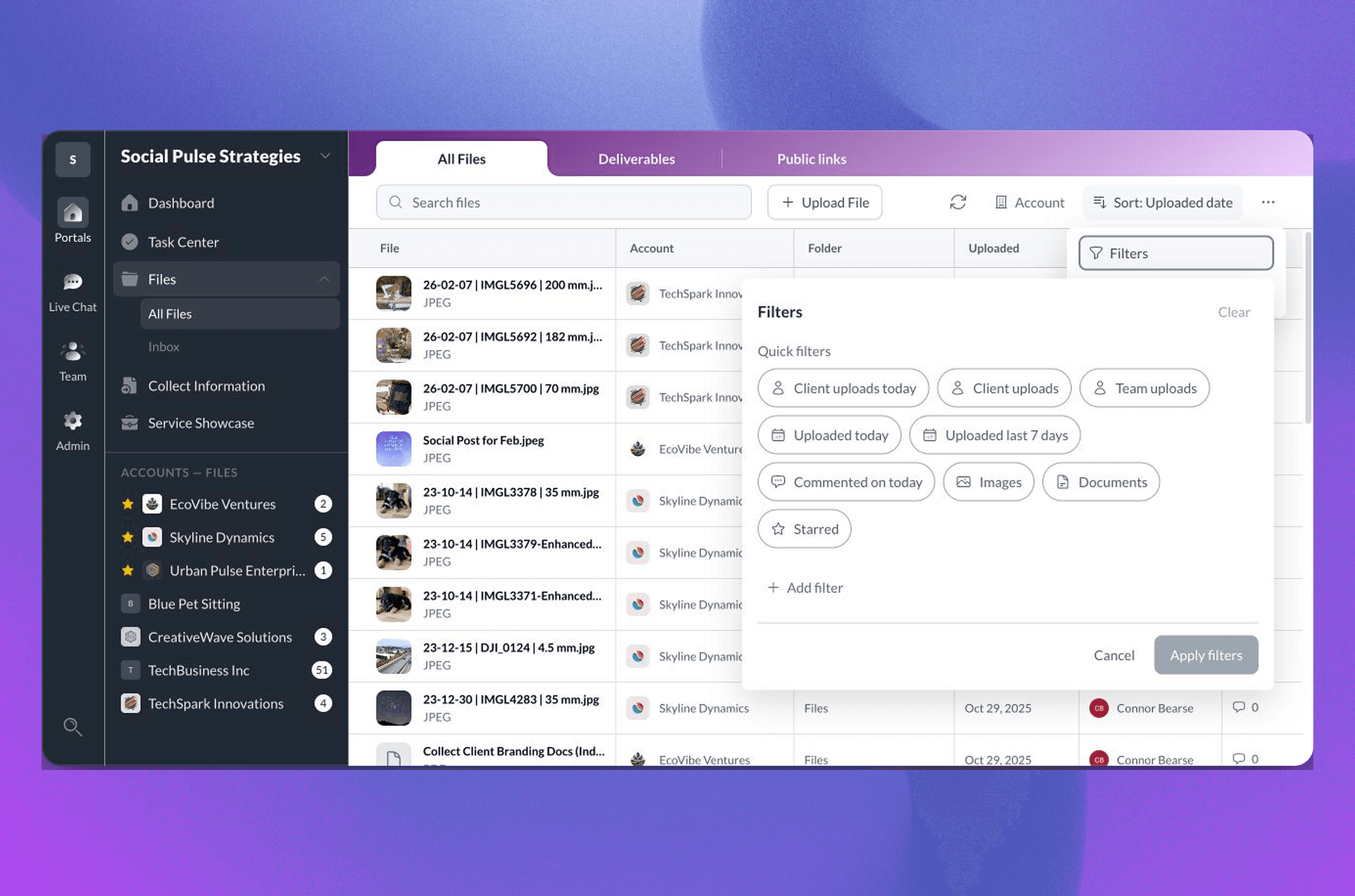
- Client uploads today for new intake or review material
- Commented on today for active feedback
- Starred for files your team has marked as important
- A file category when you need images, documents, spreadsheets, presentations, or another format
Sort by upload date, file size, name, comment count, or type. The desktop table also supports saved column choices, while File, Account, and Uploaded remain visible.
Inspect the file without losing the list
Opening a result shows the full file viewer from All Files. Depending on your access and the file, the viewer can include details, comments, versions, history, and available actions.
Use the previous and next controls to move through the loaded results. Browser Back closes the viewer and returns to the same list position. Choose Open in account when you need the surrounding folder, permissions, or other account context.
Each result represents the current file record. Older revisions remain in its version panel rather than appearing as unrelated files. That makes the cross-account list useful for finding the current asset while preserving its revision history.
If the right file is still difficult to identify after search, fix the structure at its source. The guide to organizing client folders for active work and final delivery shows how to separate intake, working files, review, and finished work inside each account.
Upload to the right account from All Files
You can start an upload without opening the account first:
- Choose Upload File.
- Select the client account.
- Select the account root or destination folder.
- Add the files and wait for the upload to finish.
The account and folder choices are part of the upload decision. Confirm both before adding sensitive or client-specific material. All Files follows your existing access; it does not create access to another account or make the uploaded file visible to a client by itself.
Use File Activity as the attention queue
Open Files → Inbox to review file notices. The page title is File Activity. It can show all activity or only unread notices, and it can stay across all accounts or filter to one account.
Selecting a notice opens the related file. Comment notices can open the related comment, and version notices can open the relevant version. Opening the destination marks that notice as read. Selection mode can mark loaded items read or unread, up to 100 at a time; Mark all as read applies to unread file activity in the current account filter.
Use the inbox to decide what needs attention. Use the individual file's history when you need the record of opens, downloads, uploads, versions, moves, renames, or supported setting changes for that file. Neither record turns an open or download into client approval.
Review delivery and public sharing separately
The Deliverables tab gives the team a cross-account view of published final packages. A Deliverable is a named, client-facing, view-only presentation of an existing folder. Use this view to find handoffs across accounts; open the Deliverable or its account when you need to review contents, client access, or view information.
Before publishing a folder, use the client file delivery workflow to confirm the hierarchy contains only client-ready work and understand how publishing changes client access.
The Public links tab is the audit surface for files shared by a public URL. Public links and client portal access solve different problems: a public link can be opened without signing in for its configured lifetime, while portal Files and Deliverables follow the client's portal identity and account access.
Review Public links regularly, especially before deleting or moving work that an external link may reference. Turn off a link that is no longer needed instead of treating it as permanent client access.
Use Universal Search for a broader lookup
Open Universal Search with Command + K on macOS or Control + K on Windows when the search may involve more than a file. It can return permitted accounts, boards, tasks, files, folders, Deliverables, Requests, conversations, people, pages, and settings.
Universal Search does not search message bodies, comments, task descriptions, Request answers, or the contents of files. For file-specific filters, versions, or history, continue in All Files.
Build a repeatable daily review
A practical cross-account file routine can stay short:
- Open File Activity and review unread notices across all accounts.
- Open the related file, comment, or version before deciding what the notice means.
- Use All Files to find other current assets connected to the work.
- Move into the client account when folder context or access needs review.
- Check Deliverables for final handoffs and Public links for public access that still needs to exist.
- Record approvals or next actions explicitly in the owning file, Task, or agreed workflow.
This routine reduces folder hunting without flattening every client into one shared file store. Each result still belongs to its account, and every action still follows the team member's access.
To evaluate whether this cross-account workspace fits your team's file process, explore Sydnee File Sharing. For setup details, use the guides for All Files and the File Activity Inbox.