

A client folder structure should tell your team what state the work is in. If drafts, client uploads, approved assets, and final files all live beside one another, a neat naming convention will not prevent someone from sharing the wrong version.
Organize the top level by workflow stage, then add project or file-type folders only where they help.
Start with five durable folders
This structure works as a starting point for many service engagements:
Client account
├── 01 Client uploads
├── 02 Working files
├── 03 Client review
├── 04 Final deliverables
└── 05 Reference
The numbers preserve the intended order. The names describe why a file belongs there.
01 Client uploads
Use this for source material the client provides: brand assets, data exports, reference documents, photography, or completed intake uploads.
Name an owner who reviews each upload and moves usable inputs into the work before the team treats them as approved source material.
02 Working files
Keep drafts, internal exports, production files, and unfinished versions here. This folder is usually team-only or limited to the people doing the work.
Avoid creating a new file for every revision when the file system supports versions. One file record with a clear version history is easier to review than homepage-final-v7-revised-final.pdf.
03 Client review
Place only the work the client should evaluate in this stage. The folder should answer three questions:
- Which version is current?
- Who needs to respond?
- What decision closes this round?
When the review surface supports comments or visual pins, keep feedback with the file instead of storing the only copy in email.
04 Final deliverables
This is the prepared handoff, not another working folder. Include the finished files and a structure the client can understand after the project team has moved on.
Remove scratch exports, superseded drafts, and internal notes before delivery. A final folder should not make the client guess which files matter.
05 Reference
Use this for durable material that supports more than one project: brand guidelines, approved logos, background research, or standing instructions.
Reference should remain small enough to browse. Move project-specific inputs back to the engagement that owns them.
Add project folders only when the work needs them
A retainer with several active campaigns may need another layer:
02 Working files
├── 2026 Q3 Campaign
│   ├── Copy
│   ├── Design
│   └── Production
└── Website refresh
    ├── Content
    ├── Design
    └── Development handoff
Add folders for the paths this account actually uses. Empty branches create false expectations and make the useful path harder to see.
Use the smallest structure that makes ownership and stage obvious.
Separate access from organization
A folder name is not a permission rule. Calling a folder “Internal” does not prove the client cannot open it.
Decide access at the folder level:
| Folder purpose | Typical client access |
|---|---|
| Client uploads | Full access for the contacts contributing files |
| Working files | Hidden or limited to selected people |
| Client review | Full access or View Only, depending on the review workflow |
| Final deliverables | View Only after the package is ready |
| Reference | View Only or Custom access for the intended contacts |
In Sydnee Files, a parent folder can restrict what happens below it. Current choices include Full access, View Only, Hidden, and Custom access for named teammates and portal contacts. Comments and client versioning also depend on the effective settings above the file. Review folder access and client visibility before sharing a hierarchy.
Review the actual client path because the team-side folder tree alone does not confirm client access.
Use Requests as an intake route
When you know which files you need, collect them through a structured Request instead of asking the client to choose a destination folder.
Files uploaded through a Sydnee Request enter the account's Files system in a Request-oriented structure. Other answers remain in the Request response, so your review step should distinguish uploaded documents from form information.
The client intake form guide shows how to ask only for the material the next stage needs.
Keep versions under one file record
Folders organize groups of files. Versions organize revisions of the same file.
Use a new version when the file represents the same deliverable after changes. Use a new file when the content has a different purpose or should remain independently available.
For example:
- A revised homepage concept belongs under the existing homepage concept file.
- A separate mobile prototype belongs as its own file.
- An exported final package belongs in Final deliverables after review closes.
This keeps comments, change notes, and version-specific feedback connected. The file versions guide explains how versions and history behave in Sydnee.
Turn the final folder into a handoff
In Sydnee, a Deliverable is a client-facing, view-only presentation created from an existing Files folder. Publishing changes that folder and its nested folders to view-only client access.
The client can browse the package, preview supported files, and download the work. The team can see which portal contacts opened the Deliverable. An open records access, not approval.
Use the client file delivery guide to prepare the folder before publishing it.
Make the structure repeatable
Sydnee's default Files structure can copy a prepared folder hierarchy into newly created client accounts. Keep the default broad, then add service-specific folders after you know the engagement.
For existing work, use Files → All Files when you need to find a current file across accessible accounts without remembering its folder first.
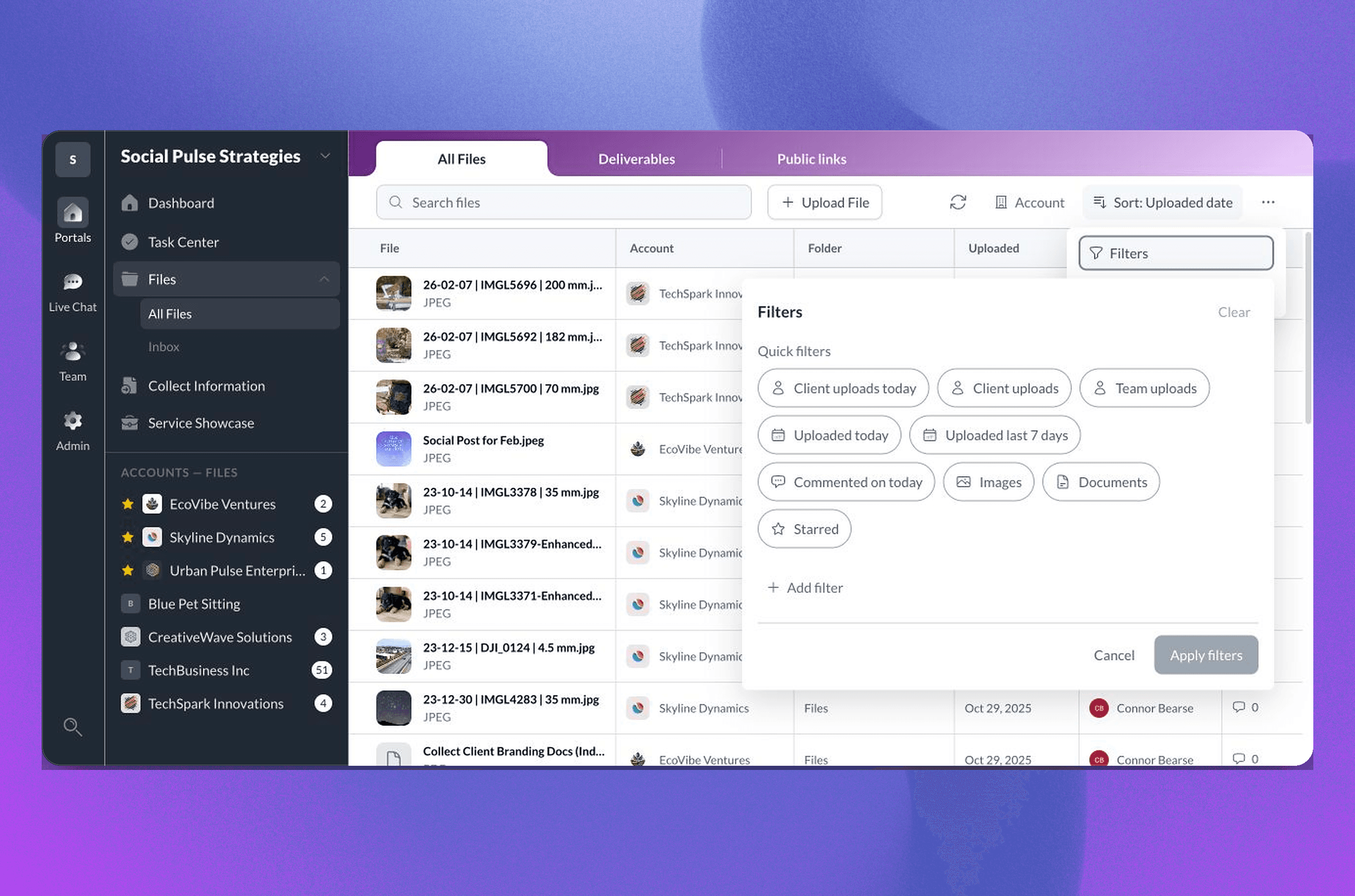
The folder structure should make the correct state obvious. The cross-account Files guide explains how to operate that system once several clients are active. Explore Sydnee File Sharing for versions, access controls, feedback, and Deliverables.