

This week brings a major update to Files and several improvements across Sydnee.
Your team now has a new All Files workspace for finding work across client accounts. We also extended visual feedback pins to PDFs, improved thumbnails and File Activity, refined public-link management, expanded file support in the public API, and polished Tasks and Live Chat.
Find files across every client account
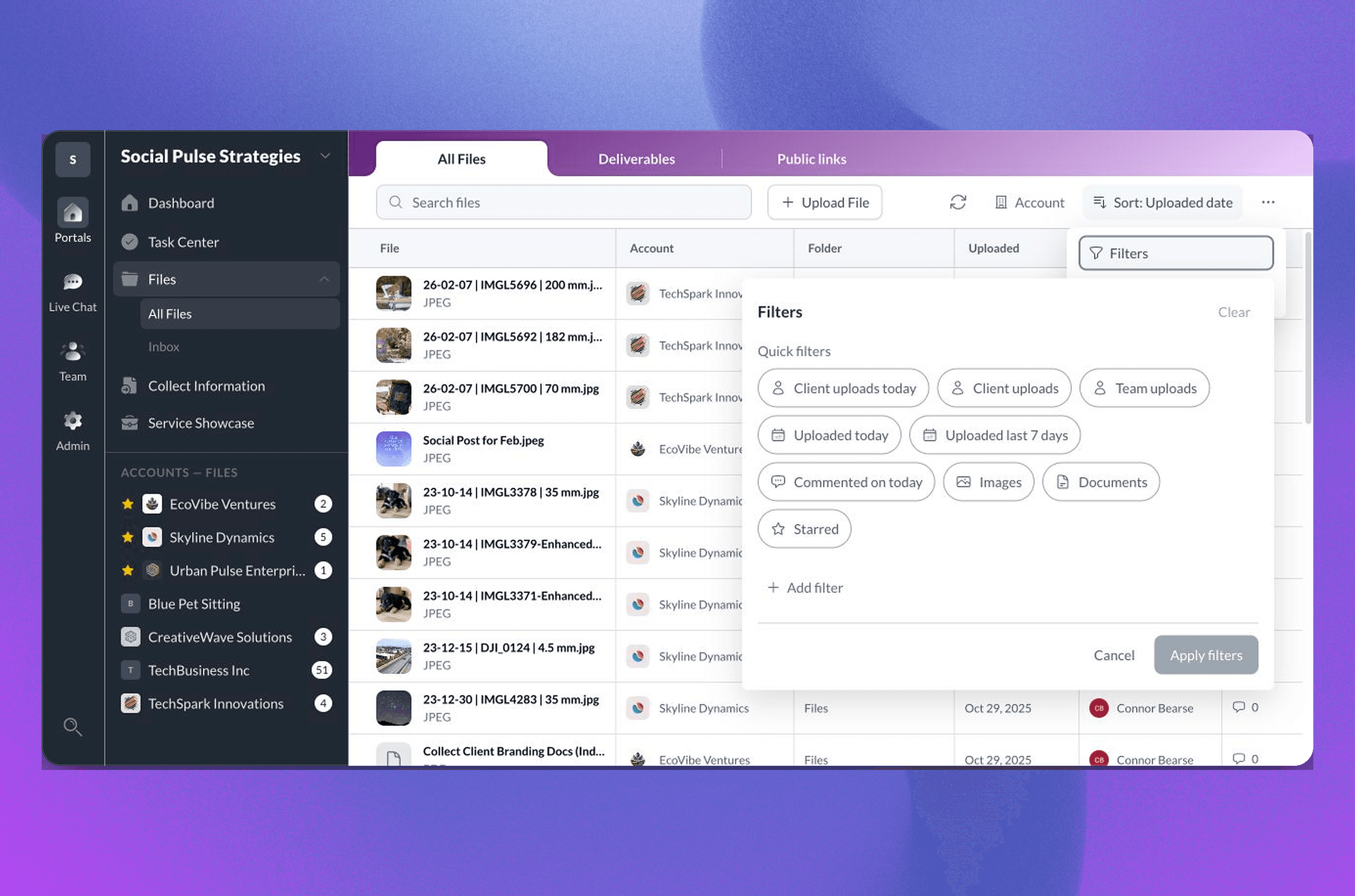
The new team-wide Files workspace gives you one place to find work across every client account you can access.
All Files shows the current version of files from across your workspace. Search by file, folder, account, or uploader, then filter by account, file type, upload date, comment activity, or Starred status.
You can also sort the list, choose which columns appear on desktop, and upload a file to a specific account and folder without opening that account first.
The workspace brings three related views together as tabs:
- All Files for files across accessible client accounts
- Deliverables for finished work published to client portals
- Public links for files shared outside the portal
Each tab keeps its own search, filters, and sorting as you move between them. File Activity remains a separate area in the Files navigation for comments, versions, uploads, and other notices.
Learn how to find and manage files across accounts.
A better way to manage public links
Public download links for individual files have been part of Sydnee for years. This week, we refined how your team creates and manages them.
The sharing flow still lets you choose an expiration of 1, 3, 7, 14, or 30 days, then copy the link and send it to the recipient. Public links do not require a client portal sign-in, so they are useful when someone needs one file without access to the full account.
The Public links area now has a more polished cross-account view. You can search and filter the list, copy or open an active link, and revoke access when the link is no longer needed. We also clarified the status and actions for expired, revoked, and older inactive links.
Expired and revoked links remain in the list as history. Sydnee also shows download requests and the most recent request time for each link.
Learn how public file links work.
Add feedback pins to PDFs
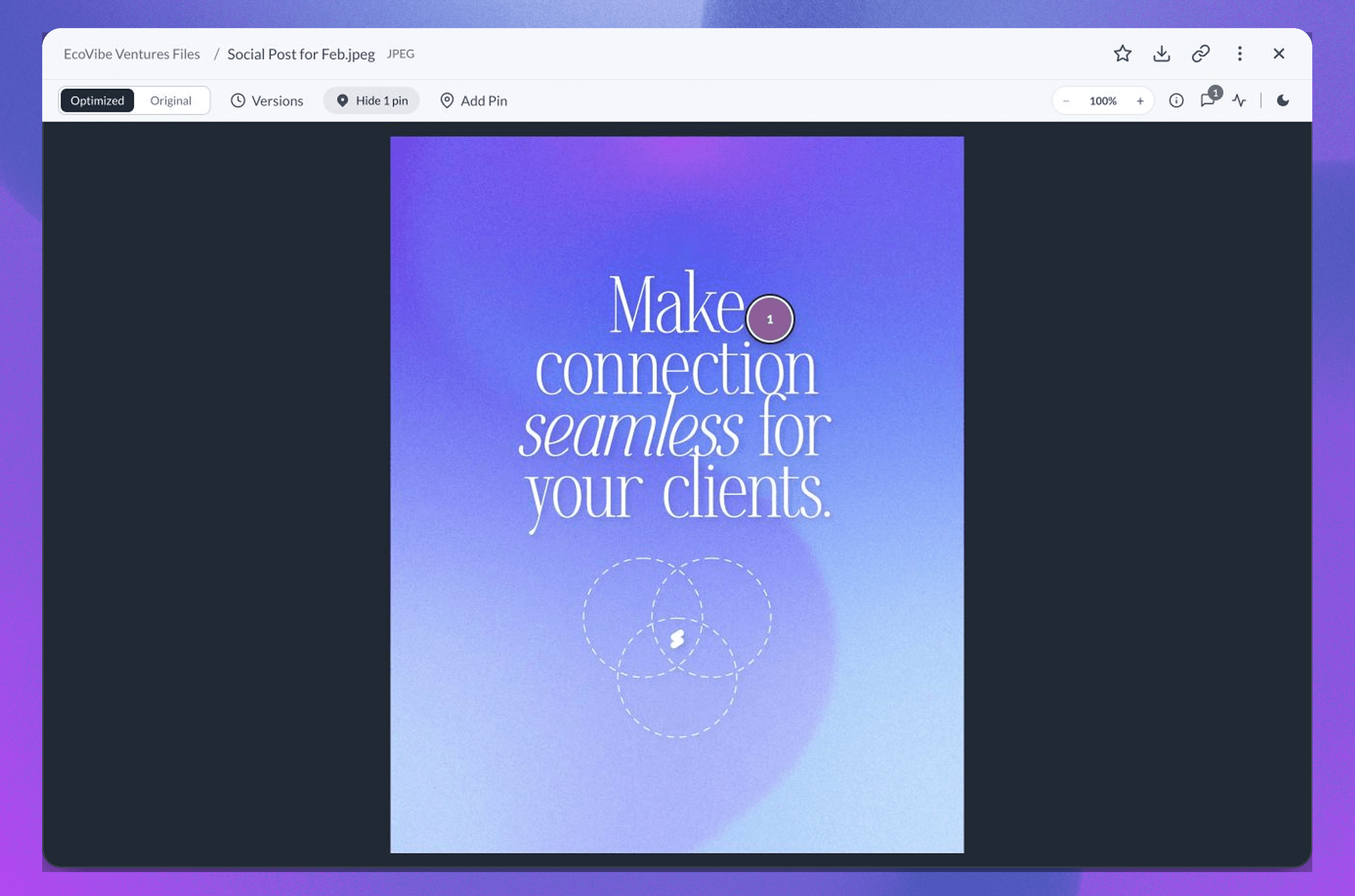
Image pins already let you connect a file comment to a specific place on an image. This week, we brought that same feedback workflow to PDFs.
On desktop, add a numbered pin where you want to leave feedback, then write the comment beside it. Selecting a pin opens its comment, and selecting the comment returns you to the matching place in the image or PDF.
Pins stay with the file version where they were created. PDF pins also stay with the selected page as you zoom or resize the viewer. On mobile, you can open existing pins and move between each pin and its comment. We also updated pin colors and contrast so they remain easier to spot over different file content.
Learn how to use comments, mentions, and visual pins.
Smoother thumbnails, previews, and file activity
New image uploads now show a processing state, then display their generated thumbnail automatically. The matching row updates when the thumbnail is ready, without refreshing the full folder or sending you back to the top of the list. We also improved thumbnail sizing in Gallery and Table views so images use the available space more consistently.
The rest of the Files experience received a broad polish pass too:
- File previews keep a steadier layout while content, versions, and panels load.
- Video previews have clearer loading and error states, including better handling for MOV files supported by the browser.
- File names, folder paths, and account links are easier to follow without crowding tables or the viewer.
- Mobile tabs, toolbars, empty states, and loading states are more consistent across All Files, Deliverables, and Public links.
- Multi-file ZIP downloads report their progress and results more reliably.
File Activity also keeps the loaded feed in place while related file details refresh, avoiding the flash and lost scroll position that could happen after a file changed.
Upload files through the public API
The public API can now add files to an account, upload a new version of an existing file, and attach a file to a task.
The new upload flow has three parts: prepare the upload, send the file to the returned destination, and confirm the result with Sydnee. A repeated confirmation returns the saved result instead of creating a duplicate, which gives integrations a safer way to recover when a response is missed.
Current upload limits are:
- 256 MiB for an account file
- 256 MiB for a new file version
- 25 MiB for a task attachment
The API can also remove a task attachment created through this public upload flow. The live OpenAPI reference includes the current routes, request fields, responses, and errors.
Learn how to upload files and task attachments through the API.
Smaller improvements to Tasks
Tasks received another round of refinements after last week’s larger release.
You can now rename task tags while keeping the tag connected to its current tasks. We also improved tag controls on Kanban cards, due-date editing, and the way My Tasks keeps its content in place while you switch views or filters.
Task feedback is now more intentional. When a created task is already visible or opens in its drawer, Sydnee uses that result as the confirmation instead of adding another message. When the task is outside the current account, view, or active filters, one success message shows its name as a link so you can open it directly.
Completion and reopening messages now link to the affected task or subtask and offer Undo when Sydnee has the matching status change. These messages also stay usable while a task drawer is open. Task links from supported email activity now open the related task board more reliably too.
Learn how to manage task details, tags, comments, and files.
A more polished Live Chat experience
The team Live Chat view also received a substantial upgrade this week.
You can select, paste, or drop up to five files into the composer, review them, and send them together as one batch. If a send fails, Sydnee keeps the message and unsent attachments available so you can try again.
Image attachments now open in a larger preview with a download action. We also refined emoji reactions, message spacing, timestamps, scrolling, loading states, and desktop keyboard focus throughout the conversation view.
Learn how account conversations work in Live Chat.
This week’s release makes Files a stronger home for work across every client account, whether your team is finding a file, reviewing PDF feedback, managing a public link, or connecting Sydnee to another system.
As always, thank you for the feedback, bug reports, and examples of how your team works. They continue to shape what we improve each week.