

This week, we made it easier to see how your client portal will look before you save a change, catch up on work that needs your attention, and manage files in fewer steps. We also added more control over client sign-ins and made conversations in Files and Tasks easier to follow.
A better brand center
The updated Branding workspace brings your portal logos, app icon, and colors into one place. Choose a color template or adjust the colors yourself, then preview how they look in the portal, on the sign-in page, in a Request PDF, in a shared-link preview, and as an app icon.
You can check the portal preview at desktop and mobile sizes. When adding an app icon, you can crop it and check how it may appear in browser tabs, bookmarks, and on a phone home screen.
Your changes stay in a draft until you select Save Changes. If a logo or icon is not quite right, you can undo that change before publishing the new look to your portal.
Open Company Settings → Branding to try it. See the branding guide.
A new dashboard widget for unread notifications
The new Unread Activity widget puts unread updates and conversations from across your accounts on the team dashboard. Open a notice to go to the related work, including a task or file, and mark it as read when you are done. View all activity opens the full unread list.
If you already have a saved dashboard layout, add the widget through Customize widgets. Your current layout stays as you left it until you choose to add it.
Manage client portal sign-ins
Company Settings → Client Portal Security now gives owners a place to choose how long client login codes and sessions last. Start with a Recommended or Maximum Security profile, or use Custom to set the limits that fit your client workflow.
Owners and admins can also open Sessions manager to find valid client sign-ins and end an individual session. The owner can end all client sessions when needed. Clients can request a new code to sign in again.
Set client portal sign-in rules. Review client sessions.
Manage files in fewer steps
Need a folder inside another folder? Open the folder's action menu and choose Create Subfolder. Sydnee starts it in the folder you selected, so you can organize work without opening that folder first. The action appears when you have permission to add folders there.
You can also select several files and choose Delete selected files from the selection bar. Review the confirmation before deleting. After a successful delete, an Undo action appears briefly in the confirmation notice in case you selected the wrong files.
Refreshed file and task comments
Pinned comments now open over the image preview, beside the spot you selected. You can write your note while keeping the image and pin in view, then return to that same spot when you open the comment later.
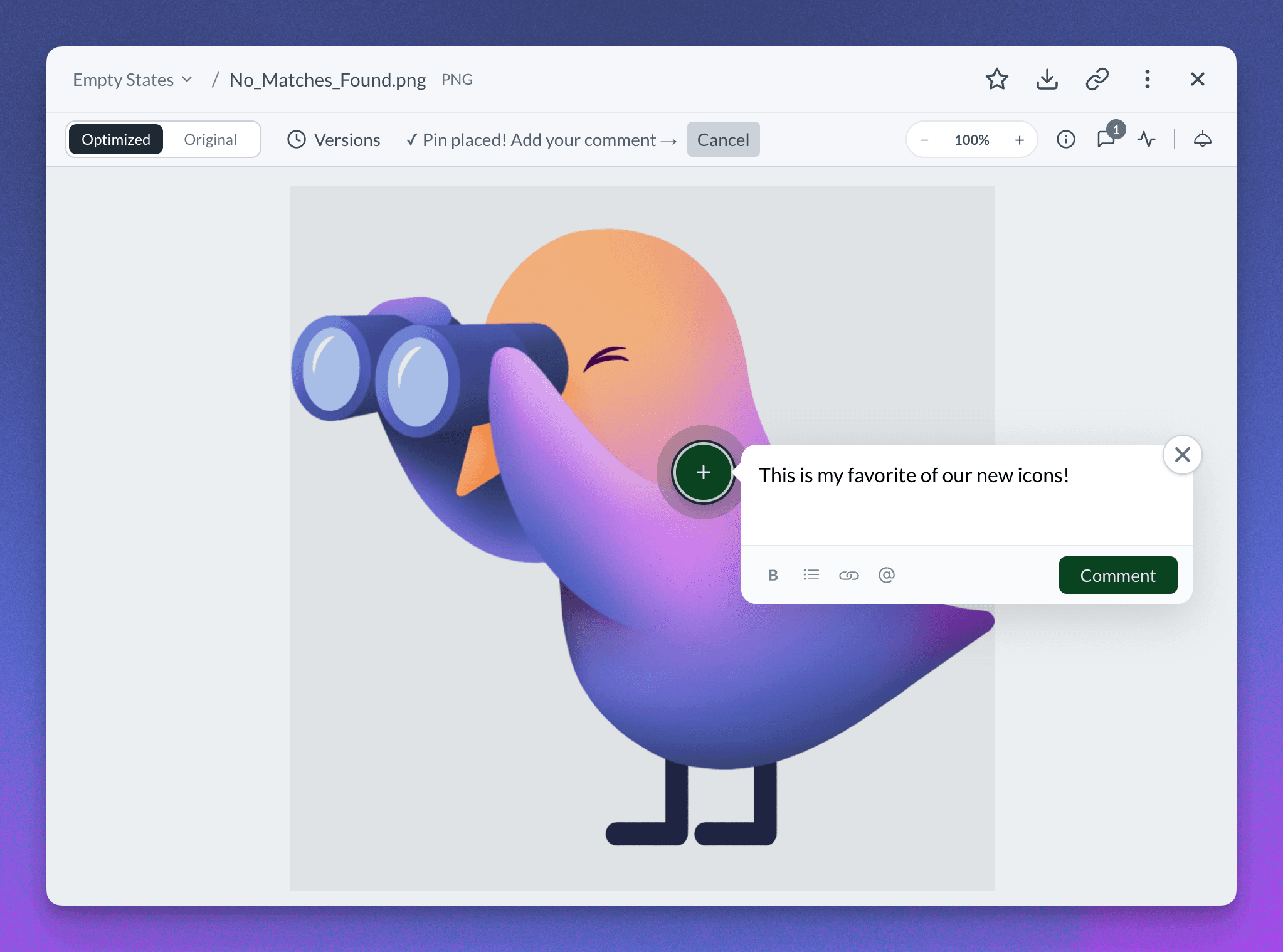
File discussions are easier to read when a thread grows. Sydnee shows the latest few replies and tucks earlier ones behind a more comments link with the hidden reply count. When you add a comment or reply, it appears in the conversation while it sends. If sending fails, you can retry that same message.
Task comments now give you clearer feedback while they send, too. A failed comment keeps its place in the conversation with a Retry action, so you can continue without starting a second copy.
Learn about file comments. Learn about task comments.
Smoother Request building and publishing
At the final step of building a Request, it is easier to choose when it goes live, set a due date, add reminders, and choose who on your team receives updates. Dates and times show your local time zone so you can check the schedule before saving.
After you publish a Request, Sydnee now keeps the sharing link and Notify client action together in a next-step panel. Scheduled Requests show when they will publish and make clear that the link becomes available to clients at that time. Once a client has answered, the panel points you to View responses.