
Your client may need a scheduling page, reporting dashboard, form, video library, and design review tool during one engagement. Sending each destination in a separate email makes the client remember which link belongs to which job.
A client portal can organize those destinations without pretending to replace every specialist tool. In Sydnee, a custom portal page adds compatible third-party content to the navigation for one client account or across all accounts. You can also add an external link when the tool works better in its own browser tab.
The important distinction is this: an embedded page creates one place to access a tool, not one system of record.
Choose between a dashboard note, an embed, an external link, and an integration
These four options solve different problems. Decide what the client needs before choosing the presentation.
| Option | Use it when | What it does not provide |
|---|---|---|
| Memo Pad | One account needs a welcome note, key links, instructions, or supported media on its dashboard | A full-page tool, client editing, or data sync |
| Embedded page | The provider supplies compatible embed code and the client should use the content inside the portal | Automatic data sync, shared permissions, or single sign-on |
| External link | The provider requires a full browser tab, blocks framing, or has an awkward embedded experience | An in-portal experience |
| Native integration | Sydnee and the provider need to exchange records or trigger supported actions | A capability created by pasting embed code |
This boundary matters because an embedded tool remains a separate website. The provider controls its own account access, cookies, sharing settings, data, and availability.
Memo Pad is the lighter option when the client needs context rather than a complete tool. Team members edit the card on one account dashboard, and clients can read the saved content when the Memo Pad widget and Visible to clients are both enabled. It supports ordinary links and media from supported providers, but clients cannot edit it.
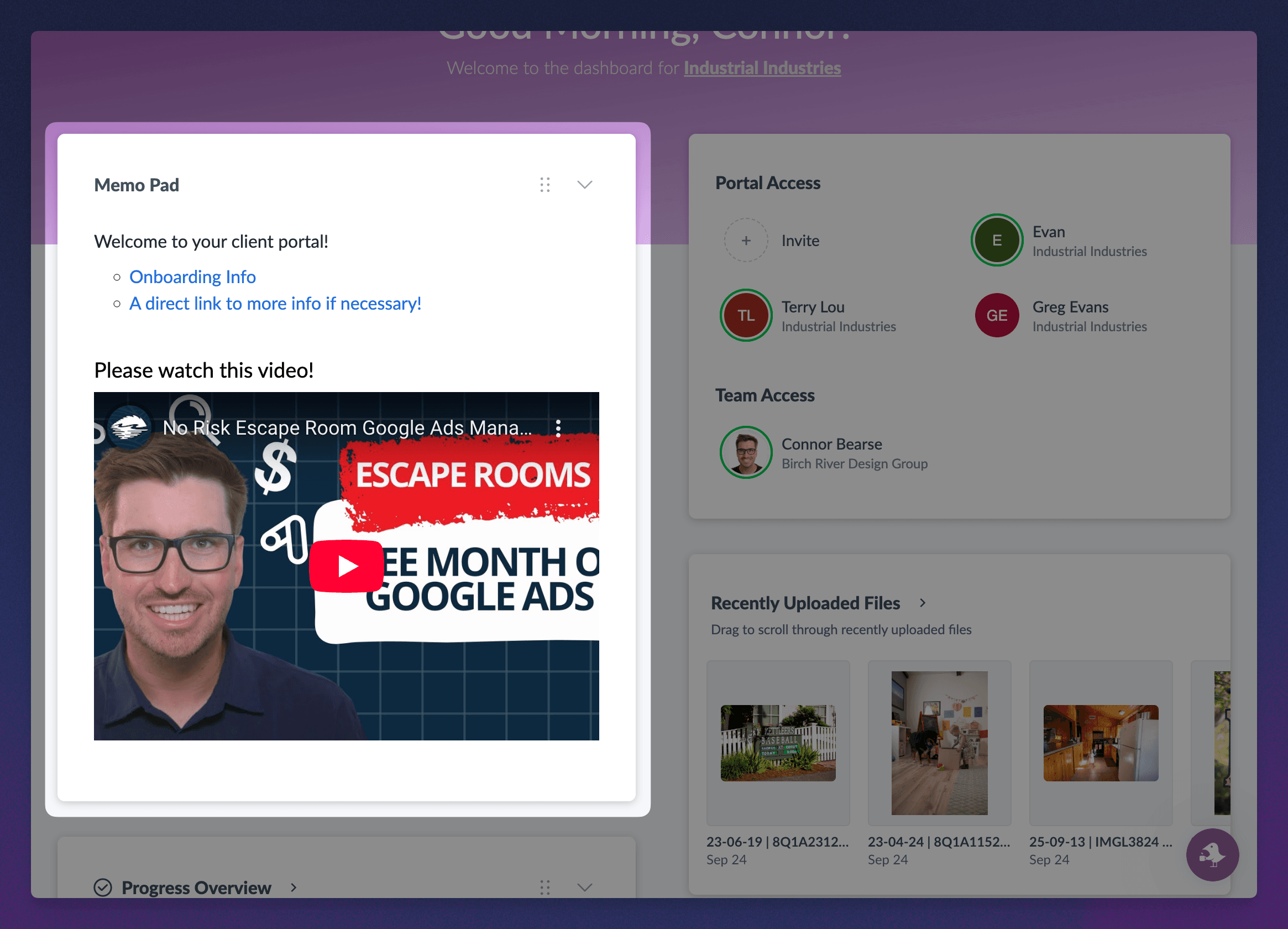
Use the Memo Pad setup guide for its current visibility and media rules. Use a custom page when the client needs a full embedded form, report, dashboard, or other interactive destination.
Providers can also decide whether another site may display their pages in a frame. The Content Security Policy frame-ancestors directive is one browser mechanism providers can use to allow or block that behavior.
If a tool does not support the embedded experience your client needs, use an external link. A clean new tab is better than a portal page that fails at sign-in.
Decide whether the page belongs to one account or every account
An account-specific page appears only in the client account where your team creates it. Use that scope for content tied to one relationship, such as:
- A client’s reporting dashboard
- A project-specific Figma presentation
- A scheduling page for the client’s assigned strategist
- A private video or resource library with provider-managed access
A global page appears across every client account in the workspace. It fits a shared destination such as a general booking page or a public resource library.
Global placement does not make the provider content safe for every client. Before publishing the page, check the provider’s audience and sharing settings. A dashboard that filters by client inside the provider may still expose the wrong data when its link or permissions are configured incorrectly.
Use this rule: set the narrowest Sydnee scope that fits the job, then configure access again inside the provider.
Build the page around the client’s task
Start with a client-facing title. “Book a strategy call” gives the client more direction than “Calendly,” while “Campaign dashboard” explains the purpose better than the analytics provider’s name.
Sydnee currently offers setup shortcuts for providers such as Calendly, Figma, Loom, Typeform, and Google Looker Studio. It also accepts compatible code through Custom Embed. These shortcuts guide setup; they do not represent native integrations or guarantee that every provider feature will work in a frame.
For an embedded page, your team can configure the title, description, page sizing, and presentation. You can preview desktop and mobile layouts before saving. Use those controls to frame the content, then test the real client experience because preview dimensions cannot verify provider permissions or authentication.
For a destination that should leave the portal, create an External Link instead. It appears in portal navigation and opens the configured address in a new tab.
Keep the portal shell consistent
Clients open a custom page from the same account navigation they use for Sydnee’s built-in modules. The page stays inside the branded portal shell, including the current navigation, portal colors, footer, and Live Chat when that feature is available.
The provider’s interface still keeps its own design. Portal branding does not recolor an embedded dashboard, remove the provider’s logo, or change the controls inside it.
The surrounding navigation still needs a clear structure. Use the client portal best practices to decide which modules and actions deserve space beside each custom page.
The two sides of the experience remain distinct:
- Team side: team members can open the account page and use the available editing controls
- Client side: portal users open the page without Sydnee’s editing controls, subject to the provider’s own access rules
An account-specific page does not automatically create matching permissions in the external tool. Add the right client inside the provider, share the correct provider resource, or use a provider-supported public view as the workflow requires.
Test the provider before inviting clients
Treat testing as part of publishing, not as cleanup after a client reports a blank page.
- Use provider-issued embed code. Do not paste a private editor URL, administrator page, credential, or access token.
- Check framing support. Confirm that the provider allows the page to load inside another site.
- Test as the client. Open the actual portal with a portal-user account rather than relying only on the team view.
- Verify the audience. Confirm that the provider shows only the records, designs, calendars, or reports intended for that client.
- Test authentication. Check sign-in, consent prompts, cookies, and links that open another tab.
- Review both layouts. Test the page on desktop and mobile, including scrolling and interactive controls.
- Recheck global pages. Open the page from more than one account and verify that provider access remains appropriate in each one.
Third-party cookies can affect signed-in embedded experiences. Web.dev’s guidance on embedded third-party content explains why providers must configure their session cookies for cross-site use. If the provider’s authentication fails in a frame, the external-link option may give the client a more reliable path.
Use one portal without overstating what it connects
Consider an agency that shares a campaign dashboard, review presentation, and meeting scheduler. The agency could place the client-specific dashboard and presentation inside that client’s account, then add a shared scheduling page globally.
The client gains one navigation system for those destinations. The agency still manages dashboard permissions in the reporting provider, presentation access in the design tool, and availability in the scheduling platform.
This pattern complements a connected client portal workflow. Requests, Tasks, Files, Live Chat, and Deliverables keep their native Sydnee behavior. Custom pages give external tools a deliberate place beside them without inheriting those modules’ records or permissions.
Make the destination clear, then keep the boundary clear
An embedded page works best when it removes link hunting while preserving the truth about where the tool lives. Give the page a clear purpose, choose account-specific or global placement carefully, and test the provider from the client’s side.
Compare the current setup paths in the custom pages, embeds, and external links guide, then use the client portal overview to place those destinations beside the rest of the client workflow.