
Managing client work across accounts requires two perspectives. Each person needs a reliable list of the work assigned to them, while an operations lead needs to see how client boards are moving without opening every account in turn.
Sydnee's Task Center is the team home for both views. My Tasks answers “What do I need to do?” Task Boards answers “How is each client's work moving?” The Inbox keeps task notices together, while Templates holds reusable work structures.
Task Center is team-only. Clients use the Tasks area inside one client account and do not see cross-account My Tasks, Board Health, Inbox, or Templates.
Use My Tasks for personal execution
Open Task Center → My Tasks to review work assigned to you across the client accounts and boards you can access.
Choose the scope that matches the job:
- All My Tasks combines open assigned client work with your personal team-only tasks.
- Private Tasks shows personal work that is not connected to a client account.
- Assigned to me focuses on open client-account work assigned to you.
- Recently completed helps you revisit work you finished recently.
Use the available layouts, filters, sorting, and grouping to reduce the list to the next useful set. Keep the client account visible in the result: two Tasks with similar titles may belong to different relationships, files, permissions, or deadlines.
Use Task Boards for the operations view
Open Task Center → Task Boards when you need to review boards instead of individual assignments.
The area separates:
- Active Task Boards you can open now
- Archived Task Boards that remain listed but must be restored before their Tasks open again
- Task Board Updates from active boards with Overview enabled
The board table can show the client account, board health, visibility, open or overdue work, last status update, and other saved columns. Access still applies: a team member sees only the accounts, boards, sections, and task evidence available to them.
Treat Board Health as a reported status
Board Health shows the latest status a team member posted in that board's Overview. It is not an automatic score calculated from open or overdue Task counts.
That distinction protects the meaning of the status. A board can have overdue work and still have a reviewed plan that keeps it on track. Another board can have few overdue Tasks but be at risk because an external decision or dependency is unresolved.
Current status choices are On Track, At Risk, Off Track, On Hold, Complete, and Dropped. At Risk, Off Track, and On Hold require a written current update. A board without Overview shows Overview not enabled and does not appear in Board Health status counts or filters.
Make Overview useful to the next reader
Enable Overview on a board when the team needs a durable summary of its goal, context, milestones, current status, next steps, and status history.
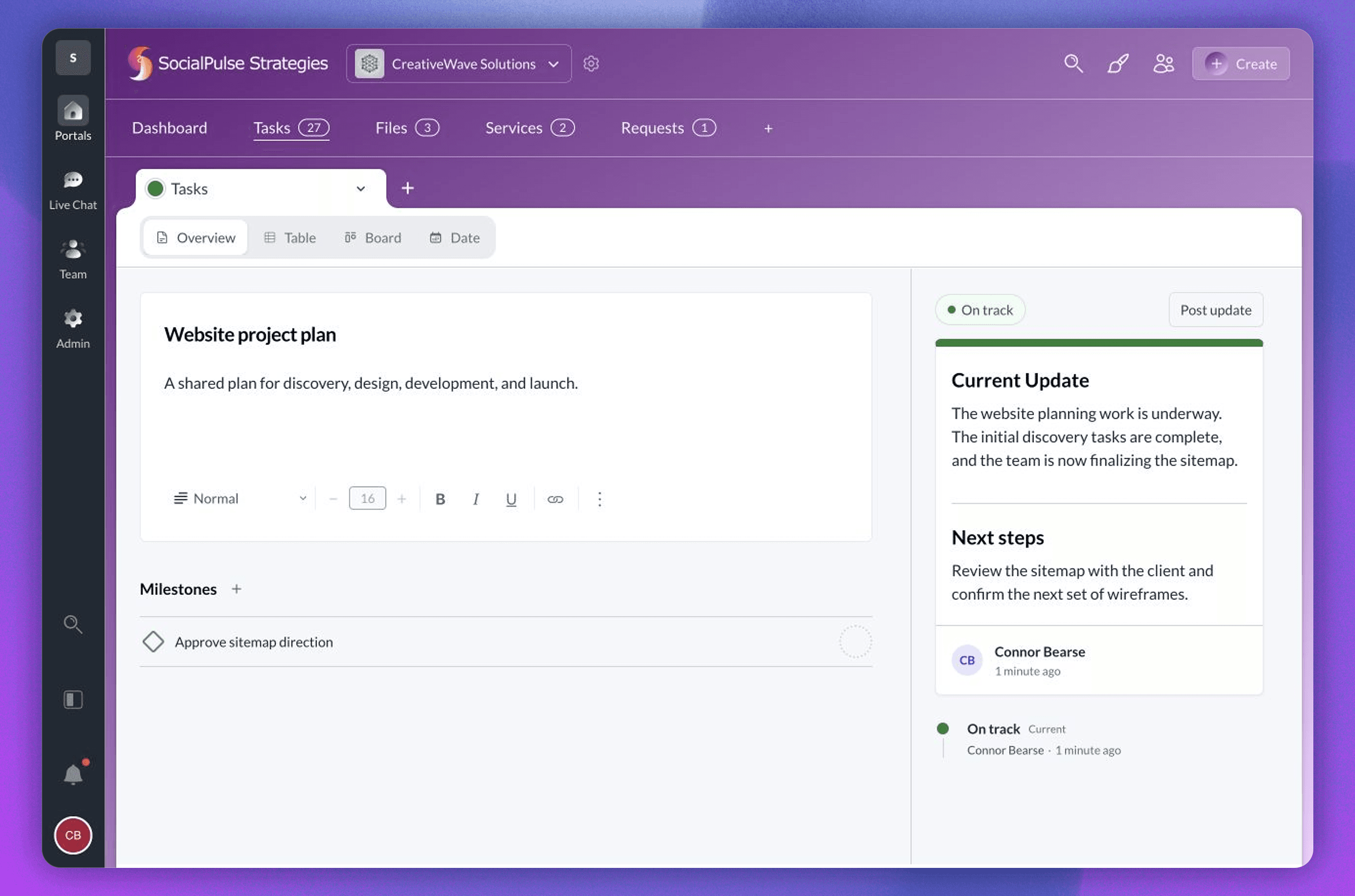
A useful status update explains:
- What changed since the previous update
- What the current status means for the work
- The next action and its owner
- Any decision or dependency that could change the plan
The board status is set by a person. Posting On Track should reflect a review, not an attempt to make the directory look healthy. A team member can hide Overview from clients without hiding the rest of the board.
Model the plan with tasks, milestones, subtasks, and dependencies
Use each work type for its intended role:
- A Task is an actionable work item with ownership, status, dates, comments, files, activity, and client-access rules.
- A milestone is a flat, top-level checkpoint with at most one date. It cannot repeat, nest, or contain subtasks.
- A subtask breaks a larger Task into smaller work and can have its own assignee, dates, comments, files, and activity.
- A dependency records that one Task must be completed before another can be completed.
Dependencies stay within one board and cannot form cycles. Direct blockers prevent completion. Clients can see a safe Blocked state when applicable, but they do not receive the title of a blocker they cannot access.
Use milestones for outcomes a stakeholder can recognize, subtasks for execution detail, and dependencies only when the order is real. Too many dependencies can turn the board into a fragile diagram instead of a usable plan.
Use Inbox for attention, not project status
Open Task Center → Inbox for task notifications. Selecting an active item opens the Task in a drawer so you can review the work that produced the notice.
Inbox does not replace Task activity or Board Overview. A notification directs your attention to a supported event. The Task timeline records comments and supported changes around one work item. Overview communicates the reviewed state of the board.
Older notices may remain after a board is archived or removed. Restore an archived board before opening its Tasks. A removed board is no longer available to restore even if an older notification remains.
Separate reusable structure from live client work
Use Task Center → Templates for repeatable sections and Tasks. Add a reviewed template to an account board when the engagement needs that structure.
Templates are team-only starting points. After insertion, review the live board's assignees, dates, visibility, and client-specific scope. A template cannot decide whether this client is ready to begin or whether every standard Task applies.
Use the connected client portal workflow to define the transition from intake into the live board. Use the Task API guide when a verified external event should create or update supported work consistently.
Run one cross-account review rhythm
A weekly operations review can follow the same sequence:
- Open Task Boards and filter Board Health to the statuses that need discussion.
- Read the latest written update before interpreting counts.
- Open boards with missing or stale context and confirm the next owner.
- Review overdue work within the access available to you.
- Ask each person to use My Tasks for their assigned execution queue.
- Record the resulting decision in the Task or Board Overview that owns it.
This keeps the cross-account directory useful without turning it into a substitute for the work inside each client board.
Explore Sydnee Tasks, or use the detailed guides for Task Center and milestones, subtasks, and dependencies.