
We’ve added MCP to Sydnee, starting with Tasks. You can connect AI assistants like ChatGPT desktop / Codex and Claude Code to see what’s due across your client accounts, check what’s blocked, or add a follow-up to the right board.
MCP stands for Model Context Protocol. It gives your assistant a way to work with the same task boards your team already uses.
Start with your next client call
Say you have a website kickoff in ten minutes and want to see what’s still open before the call. Here’s what I’d ask Codex.
Find the open tasks on Cedar Works’ Website Launch board. Show me what’s due this week, who owns each task, and which tasks are blocked. Include links so I can open them in Sydnee.
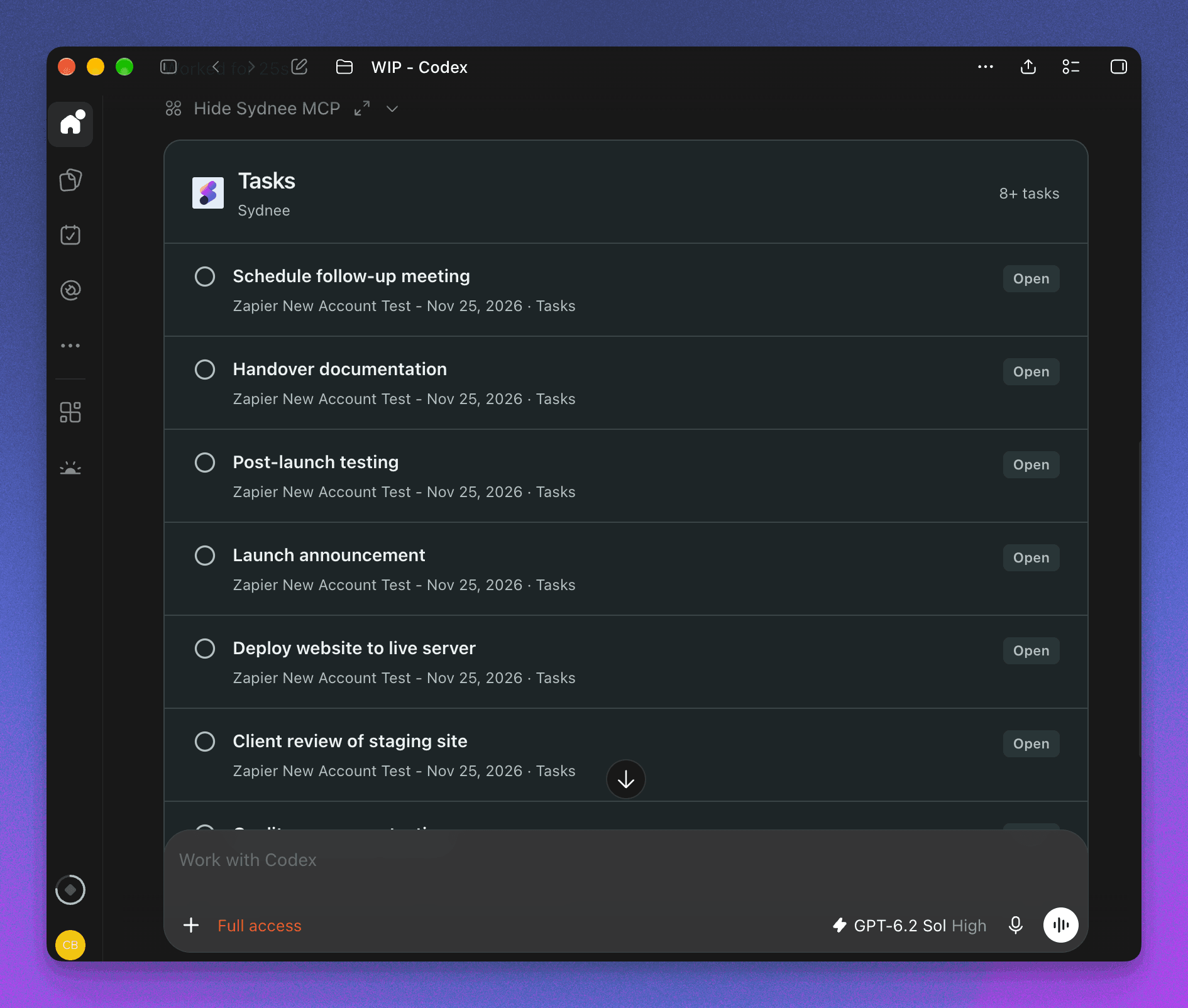
Here’s what an open task list looks like in Codex, using a test account.
After the call, ask Codex to add a task for collecting the homepage photos. Give it a due date and tell it where the task belongs on the launch board.
You can also ask for the tasks assigned to you across accounts or pull up your own Personal Tasks. When Codex posts a comment for you, Sydnee puts via MCP next to your name.
Try it with your team
In a standard Sydnee workspace, an owner or admin can turn on MCP for the team. Connect your assistant with your own Sydnee sign-in so it can work with the tasks you already have access to.
Pick a board you’re working on this week and ask your assistant what’s open. When you’re ready to update a task, give it the task link and tell it what to change.
Connect Codex to Sydnee or open the Claude Code setup in Sydnee.
Tell us what MCP should do next
If you hit a step your assistant can’t do yet, ask it to send us a tool suggestion. Maybe it’s a step on your task board or a way to check which Requests a client still has to finish.
Send Sydnee an MCP tool suggestion for finding the latest version of a file in a client’s Files folder. Include what I was trying to do and where you got stuck.
We’re using your requests to prioritize which MCP tools we build next.