
Your dashboard in Sydnee is designed to give you a strong foundation for managing any client account. But did you know you can customize your widgets globally or per account so your clients see exactly what matters most to them?
Whether you want every account organized the same way or prefer to personalize each client’s dashboard, Sydnee makes it simple to create the perfect setup.
Want to see how it works? Watch our short YouTube tutorial for a quick walkthrough on customizing your dashboard widgets.
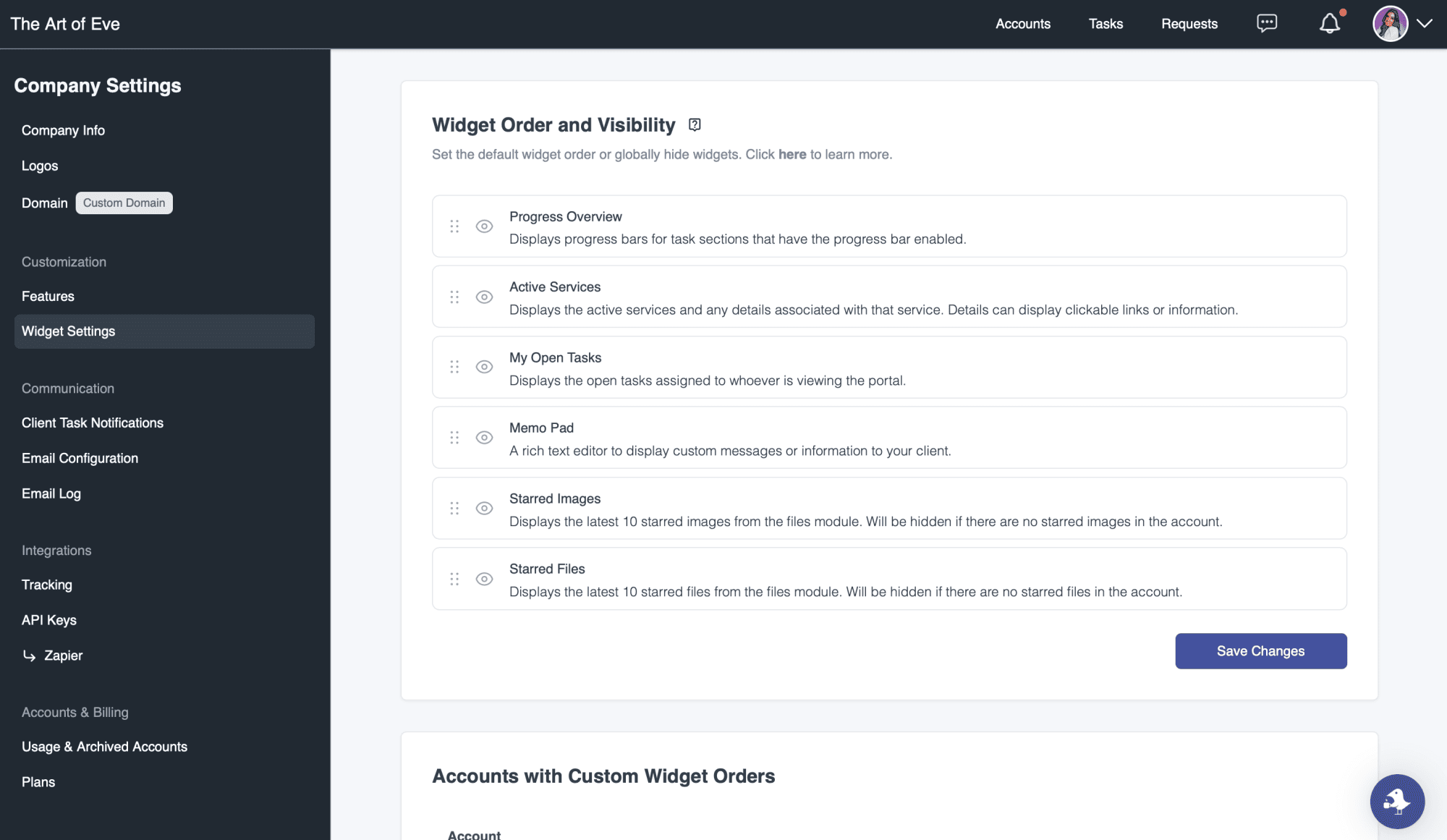
Accessing Widget Settings
Use dashboard modules, widgets, and defaults for the current workspace defaults and account-specific override controls.
From there, you can:
- Rename widgets to match your client’s language
- Reorder widgets to prioritize what’s most important
- Hide widgets you don’t use to keep the interface clean and simple
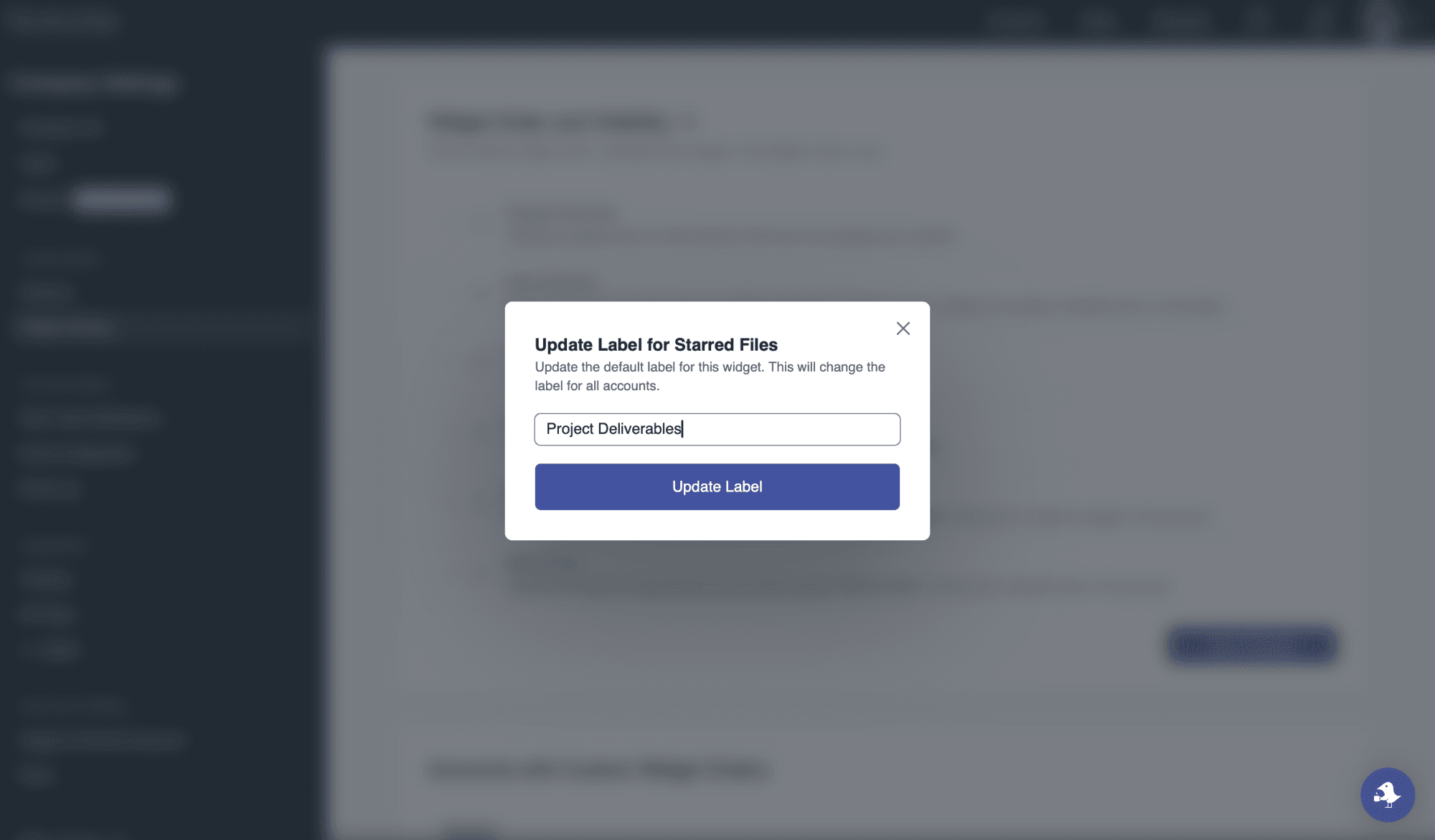
Renaming Widgets for Clarity
Customize your widget labels so they make sense to your clients.
For example:
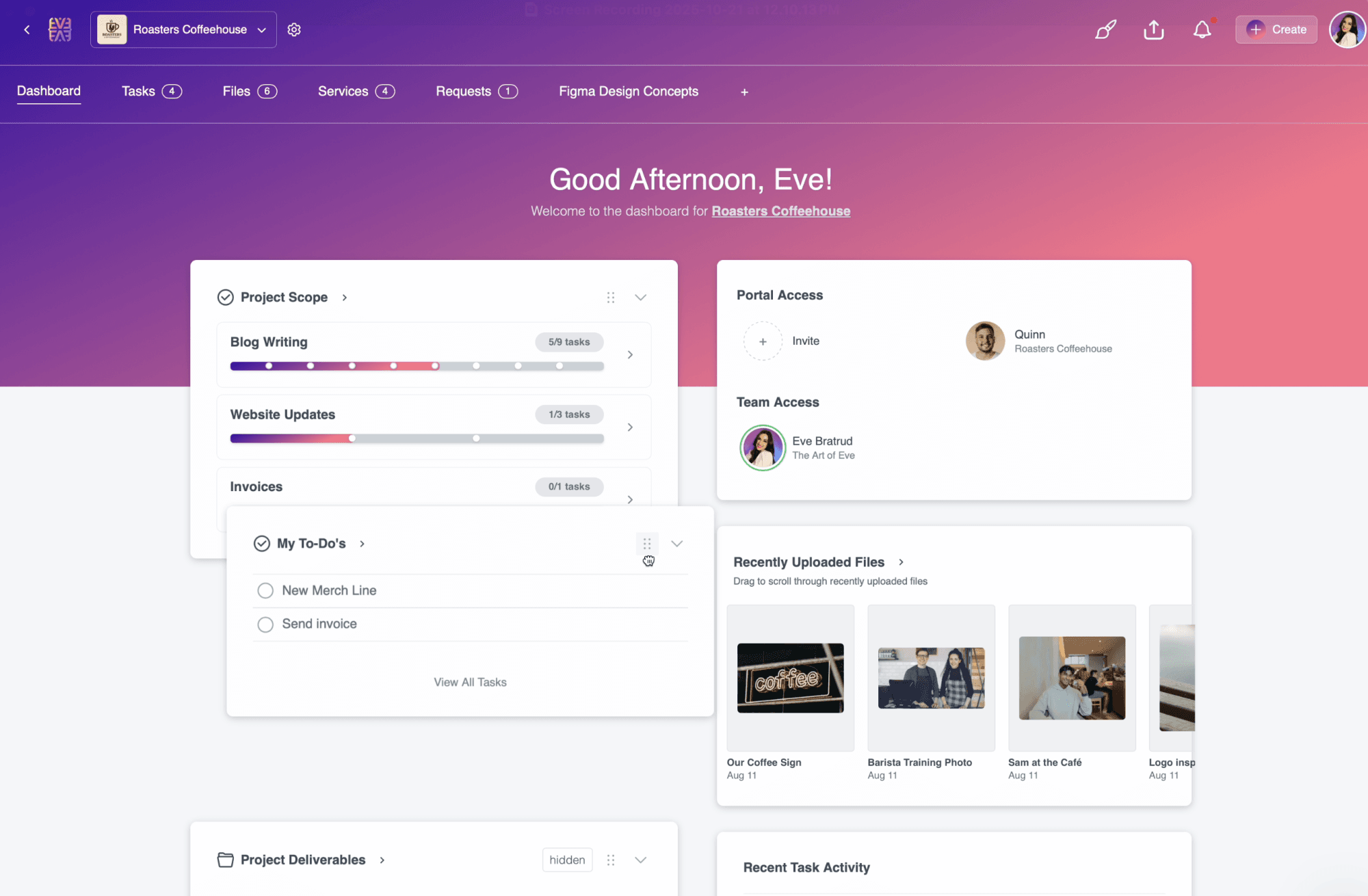
- Change Starred Files → Project Deliverables
- Change Progress Overview → Project Scope
Short, intuitive names help clients understand what they’re looking at instantly.
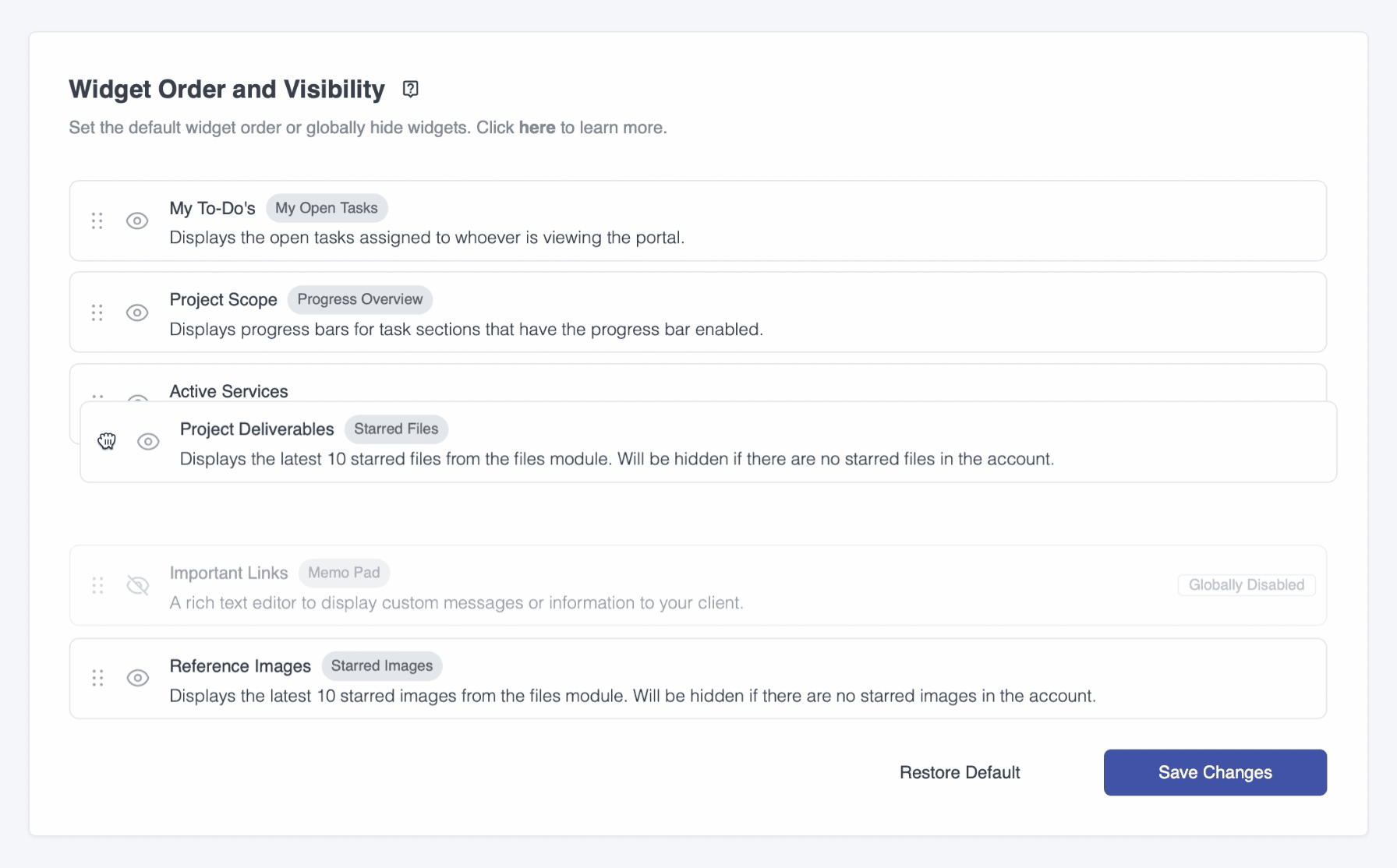
Setting Your Default Widget Order
Next, set your default widget order. Simply drag and drop to arrange how widgets appear across all accounts.
If there are widgets you don’t use often, hide them to minimize distractions and create a more focused experience for your clients.
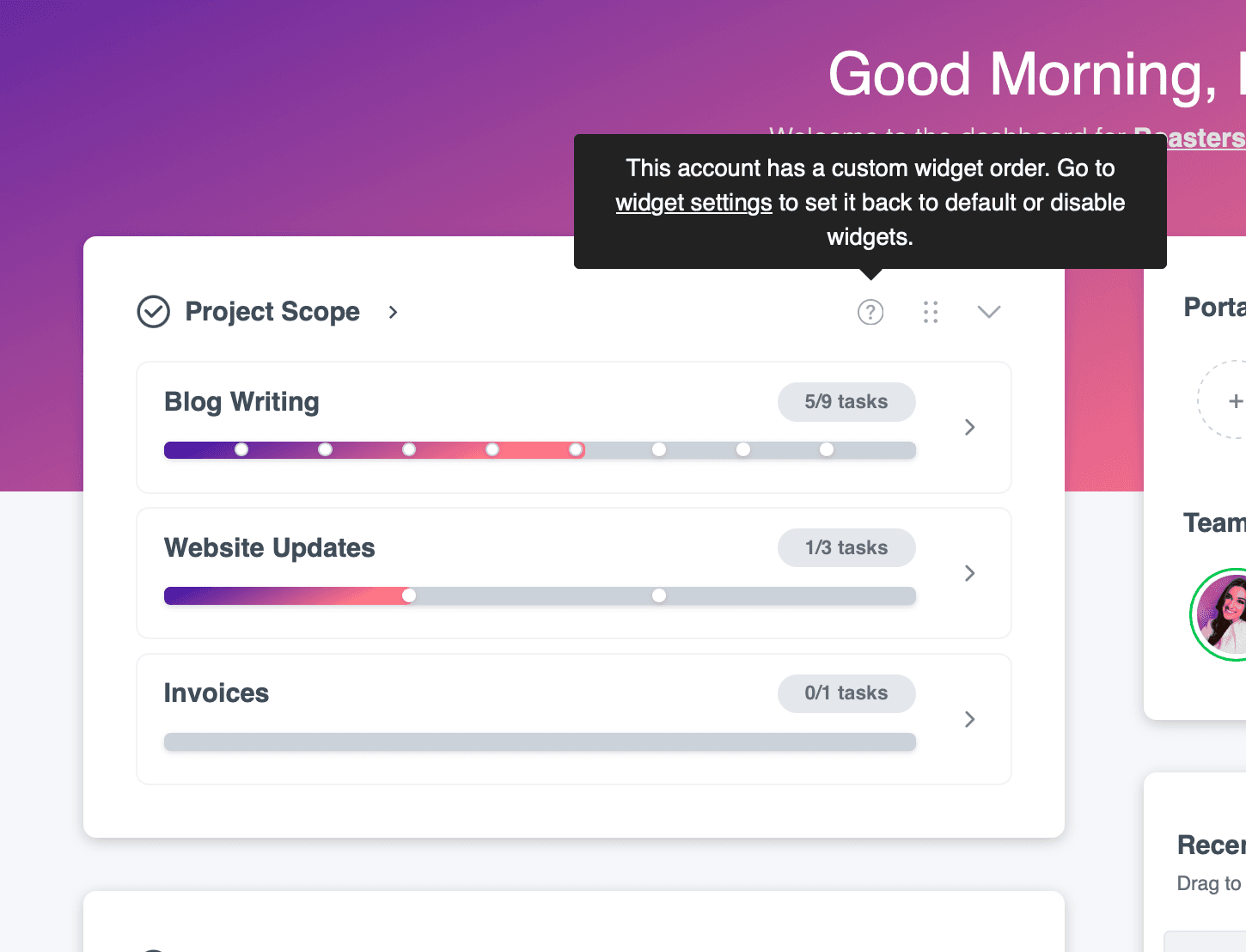
Customizing Per Client Account
Every client works a little differently, and Sydnee gives you flexibility to match that.
Within a specific client account:
- Grab the six dots at the top of a widget to drag and reorder it.
- Changes save instantly.
- If you’d like to reset the account back to your global layout, you can do that under Accounts with Custom Widget Orders in Widget Settings.
Best Practices
To keep your dashboards clean and easy to navigate:
- Keep widget names short and clear
- Hide anything clients don’t need
- Place the most-used widgets front and center
A few small changes can make a big difference in how your clients experience their portal—and how confident they feel using it.
Final Takeaway
Your dashboard is the first thing your clients see when they log in. By taking a few minutes to customize it, you can create a workspace that feels organized, intuitive, and uniquely tailored to each relationship.